

Decoding Smart Appliance Wi-Fi Issues: A Guide to Samsung and LG Connectivity
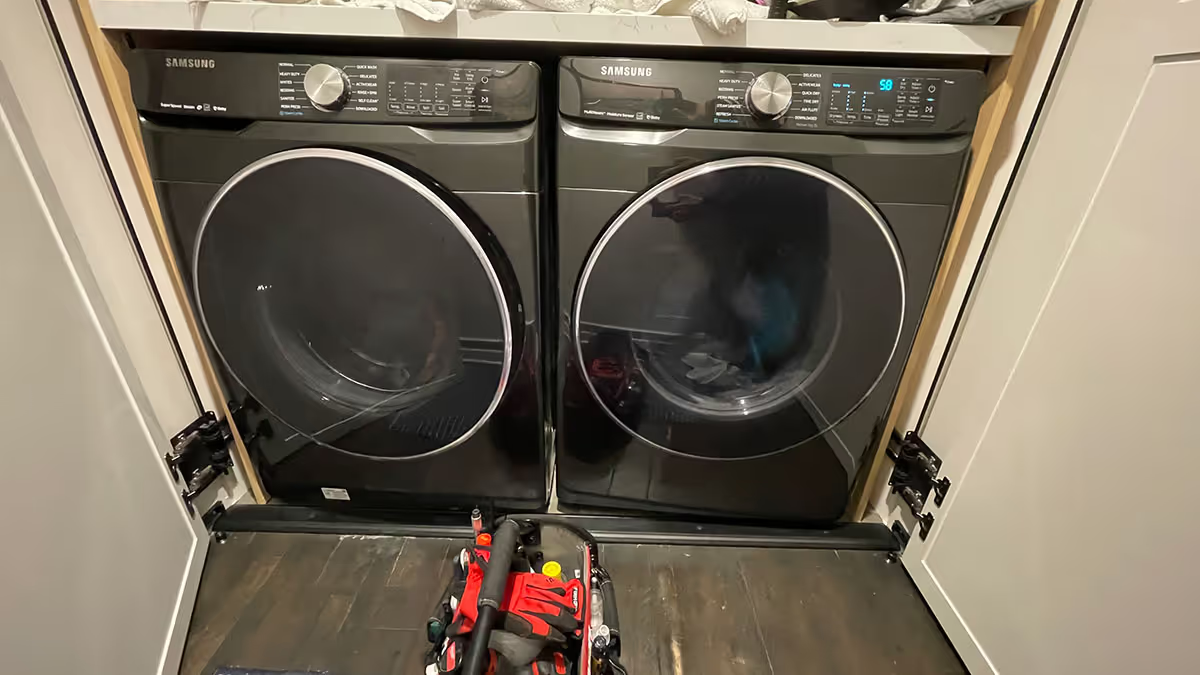
There is nothing quite like the convenience of getting a smartphone notification when your laundry is done or preheating your oven on your commute home. Smart appliances have revolutionized how we manage our households, but they also bring a new type of frustration to the kitchen and laundry room: network instability.
At A+ Appliance Repair, one of the most common complaints we hear about modern smart devices isn't about mechanical failure—it’s about Wi-Fi connectivity. If your Samsung or LG appliance keeps dropping offline or refuses to connect in the first place, you aren't alone.
Before you assume the appliance is broken, let's decode what’s actually happening with your network and walk through some simple troubleshooting steps you can try before calling in the professionals.
The Great Wi-Fi Divide: Why Your Appliance Wants 2.4GHz
The biggest culprit behind smart appliance connectivity issues is the router band. Most modern internet routers are "dual-band," meaning they broadcast two separate Wi-Fi signals: 2.4GHz and 5GHz.
You might assume that 5GHz is better because it’s faster. While 5GHz is great for streaming 4K movies or gaming on your laptop, it has a major weakness: it cannot penetrate solid objects well. Smart appliances are typically surrounded by thick materials. Refrigerators have heavy insulation and metal casings; washing machines are essentially giant steel drums; ovens are built to contain intense heat. Furthermore, these appliances are usually tucked away behind cabinetry or walls, far from your router.
This is why almost all smart appliances—including those from Samsung and LG—require a 2.4GHz network.
- The 2.4GHz Advantage: This frequency has a longer wavelength, allowing it to easily punch through walls, cabinets, and metal appliance housings.
- Bandwidth Needs: Your dishwasher doesn't need to stream high-definition video; it just needs to send tiny packets of data saying, "I'm running." The 2.4GHz band provides plenty of speed for this task with vastly superior range.
Basic Troubleshooting: Samsung SmartThings
If your Samsung smart appliance is struggling to connect to the SmartThings app, try these steps:
- Force Your Phone Onto 2.4GHz: During the initial setup, your smartphone and the appliance must be on the same network. If your phone is connected to the 5GHz band, the setup will often fail. Go into your phone's Wi-Fi settings and select the network name that ends in "2.4" or lacks the "5G" label.
- The "Airplane Mode" Trick: Sometimes cellular data interferes with the setup process. Turn on Airplane Mode on your phone, then manually turn Wi-Fi back on. Connect to your 2.4GHz network and try the SmartThings setup again.
- Network Reset: If the appliance was connected but dropped off, you may need to reset its network connection. On many Samsung fridges or washers, pressing and holding the "Smart Control" or "Network" button for 5-10 seconds will reset the Wi-Fi module.
- Router Reboot: Unplug your router for 60 seconds and plug it back in. A fresh IP assignment often clears up communication errors between the router and the appliance.
Basic Troubleshooting: LG ThinQ
LG’s ThinQ platform is incredibly robust, but it can also be picky about dual-band routers that combine both 2.4GHz and 5GHz under a single network name (Band Steering). Here is how to troubleshoot:
- Split Your Wi-Fi Bands: If your router broadcasts one single network name for both bands, the LG appliance might get confused trying to connect. You may need to log into your router's admin settings and separate them (e.g., naming them "HomeNetwork_2.4" and "HomeNetwork_5").
- Check Your Security Settings: LG appliances do not support WEP or WPA3 security protocols. Ensure your router's security is set to WPA2-PSK (AES), which is the standard for smart home devices.
- Hard Reset the Appliance: Sometimes the appliance's internal Wi-Fi board gets frozen. Unplug the appliance from the wall (or flip the circuit breaker) and leave it off for a full 5 minutes to let the capacitors drain. Power it back on and attempt the ThinQ setup again.
- Disable Advanced Router Features: Temporarily disable features like MAC address filtering, VPNs, or strict firewalls on your router just for the setup process.
When to Call the Pros
If you’ve verified your 2.4GHz network is active, reset your router, and walked through the app steps without success, you might be dealing with a hardware issue. Occasionally, the internal Wi-Fi module inside the appliance fails or experiences a loose wire harness due to the natural vibrations of the machine.
That’s where we come in. If your smart appliance isn’t acting so smart anymore, give A+ Appliance Repair a call. Our factory-trained technicians can diagnose and replace faulty communication boards, getting your household back online and running smoothly.


.avif)






.svg)













.avif)



.svg.avif)

.avif)
.avif)










.avif)








.avif)



.avif)



.avif)




.avif)



.avif)

.avif)





.avif)
.avif)
.avif)
.avif)
.avif)
.avif)
.avif)
.avif)
.avif)